Showing posts with label System Manager. Show all posts

Wednesday, July 15, 2009

Dynamics GP window notes

Having difficulty remembering steps how to make entry in GP? You can try window-level notes.


Click on Dynamics GP window notes.


Click Attach. Once a window note has information saved, the note button appearance changes with yellow lines. Window note button is available in any window within Dynamics GP.


Transaction-level notes is different from window-level notes. In my sample screenshot, another note button is available next to Journal Entry number 3744.
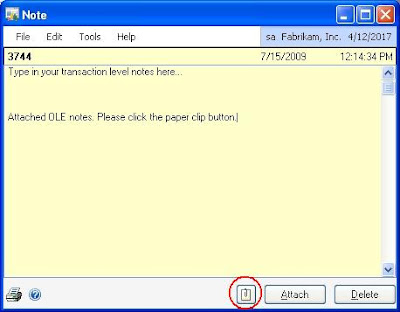


You can attach links to documents or images within the Note window. For example, you can attach customer payment overdue notices to a customer note, or attach an image of an inventoried item to an item note.


If an attachment is linked to the note, the "paper clip" on the button will appear to contain a note. If an attachment isn't linked to the note, the paper clip will appear empty.

Note:

Attachments are available only for record-level notes, not window-level notes.
Attachments are stored in the location specified in the OLEPath= line of the Dex.ini file.


Sunday, July 5, 2009

How to Print Security Report in GP

When dealing with security, it is very important to an IT professional to have strong security reports, since this is a leading topic during audits, and it can save a lot of time from an administration aspect to have security information readily available.

Go to Reports >> System >> Security >> select Security Role Assignment.

Click New, then in the Options window enter an Option name of “ALL”. Set the destination to Screen and save the Security Report Option without entering any restriction. Close the Option window and Select All and Insert it into the Print List window.

This report will show you Role ID’s with all users assigned to the Role ID.

Tips: There are several other useful reports specific to Tasks, Roles, unassigned security operations, and a comprehensive User Security report.

Saturday, July 4, 2009

Remove Security Setup Records


During Dynamics GP10 upgrade, you may choose to convert your user security. This creates a unique role and task for each of your existing users during the upgrade.

The Remove Security Setup Records utility provides an easy way to delete those records, if desired, if you decide to gradually transition completely to the new security system. This will allow you to have a clean system without tasks and roles that are no longer used.

Under the Utilities section of the Administration Area Page, click on Remove Security Setup Records.


Specify your From/To range and then click Process.


Tips: Dynamics GP10 Security Task and Role allows you to copy a template from existing pre-defined security task and role. Please make a backup of database before making any changes.