Thursday, July 29, 2010

Encumbrance vs. PO commiments by M.Gomez

Two modules often confused are the Encumbrance and PO Commitments modules. They do have some similarities, but also have clear differences.

 
The basic differences are:

 
  • Encumbrance tracks history in Great Plains while PO Commitments does not.
  • Encumbrance doesn’t integrate with Requisition Management only PO Commitments. You can still use
  • Encumbrance instead of Commitments, but you can’t track against a budget within Business Portal Requisition Management until you create a PO in Great Plains.
  • Encumbrance requires all budgets to be entered for all open fiscal years but PO Commitment's budgets can be entered for any years you want to.


Their similarities:

  •  
  • They are initiated in the Purchase Order Entry window.
  • Budgets are for Purchase Orders only.
  • Can do multiple purchases simultaneously (mass).
  • Inquiries on current view.
  • No MC functionality.
  • Maintenance available.


Wednesday, July 15, 2009

Correct/ Copy Journal Entries

Correcting posted entry made easy in Dynamics GP. You can reverse a journal entry automatically by clicking Correct and select Back Out a Journal Entry.
Select the year and journal entry number (or type in JE number). Click Ok.
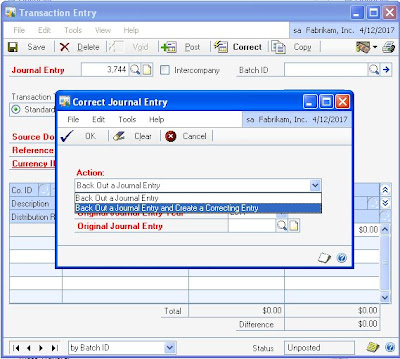


You can reverse and replace if you select Back Out a Journal Entry and Create a Correcting Entry.

The first entry created is the backout entry. When you post or save the backout entry, a second entry is created. This second entry is your original entry as a new, unposted JE that you can make changes to.

You can also copy a posted journal entry and use it as a template. Click Copy and follow the same steps in correcting entry.


Tips:

If you know the JE number, it is better to type it in. It may take time if you browse it from lookup button. Back out entries are not allowed to back out. Once it is posted you will reverse it manually. Please make sure you review before posting a back out entry.

Change Column Titles in Smartlist

You can change the column display name in Smartlist. For example, from column name "QTY Allocated" to "Quantity Allocated".

Here is how...
  1. Open your smartlist query

  2. Click Columns button

  3. Highlight an item you want to change and save it as favorite

Please make sure you have your own copy of Smartlist query before making any changes. Other users might have access to it as well.


Tips:

This is useful if you end up changing the column titles whenever you export to Excel.


Dynamics GP window notes

Having difficulty remembering steps how to make entry in GP? You can try window-level notes.


Click on Dynamics GP window notes.


Click Attach. Once a window note has information saved, the note button appearance changes with yellow lines. Window note button is available in any window within Dynamics GP.


Transaction-level notes is different from window-level notes. In my sample screenshot, another note button is available next to Journal Entry number 3744.


You can attach links to documents or images within the Note window. For example, you can attach customer payment overdue notices to a customer note, or attach an image of an inventoried item to an item note.


If an attachment is linked to the note, the "paper clip" on the button will appear to contain a note. If an attachment isn't linked to the note, the paper clip will appear empty.

Note:

Attachments are available only for record-level notes, not window-level notes.
Attachments are stored in the location specified in the OLEPath= line of the Dex.ini file.


Friday, July 10, 2009

FRx 6.7 Bug on service pack 10

FRx Row Format usually includes Currency Symbol using CS print control option. If the currency amount is set to Whole Dollars, the amount still shows with decimal places. Microsoft says this is due to change that was made on CS functionality.

Tips:
The workaround is to use the format mask.
It should look like this... 130 TO 160 "$0,000;($0,000)"

Microsoft will fix this issue on the next service pack release but no definite date yet.